# Pricing Formulas
Pricing formulas are written in JavaScript in the [pricing formula editor](https://next.homesteadcabinet.net/pricing/). A single formula can be shared by any number of products / modifications, for example, the Base Price formula is shared by basically every product on the site. A single product / modification can have any number of formulas linked to it.
Each formula has a Start Date and Expiration Date which are used to determine if this formula should be used when calculating a product price. For example, the Door Option Sum formula has a start date of 11/9/2022 and no expiration date, this means that a bid with a pricing date after 11/9/2022 will use this formula (see **Image 4**).
If no start date is set on a formula, all bids, regardless of the pricing date, will use the formula. If a bid's pricing date is old enough that no formulas apply, the built-in formulas will be used as a fallback.
##### Expiring a Price Formula
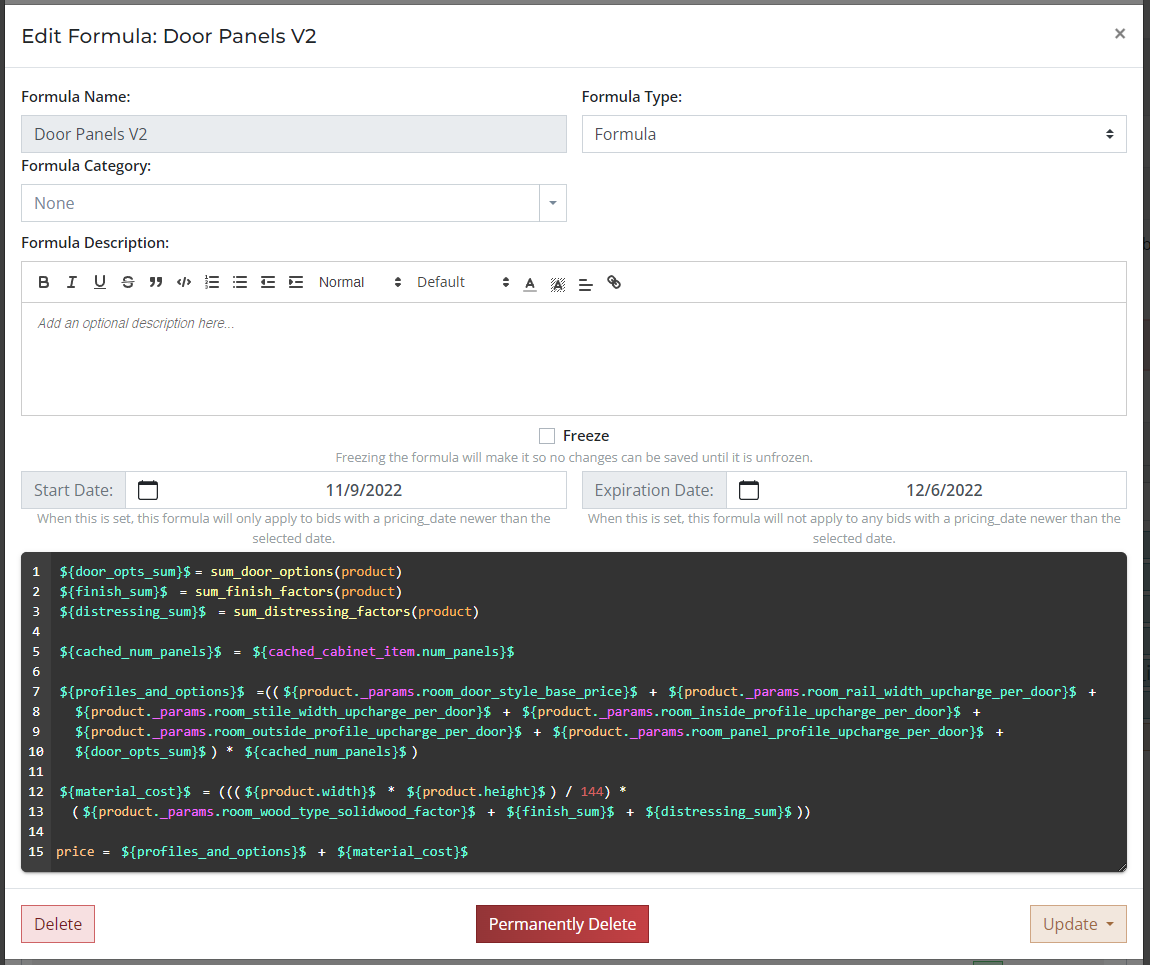
The expiration date is used to disable a pricing formula after a certain pricing date. As an example, the Door Panels V2 formula has a start date of 11/9/2022 and an expiration date of 12/6/2022, this means that this formula is only used by bids with a pricing date between those two dates. Any bids with a pricing date after 12/6/2022 will not use this formula. This feature is used to expire old pricing formulas and introduce new formulas.
[](http://help.homesteadcabinet.net/uploads/images/gallery/2023-08/K40image.png)
**Image 4.** Door Panels V2, expired formula example.
#### Link Formulas to Products / Modifications
There are three ways to link price formulas to a product / modification:
- Global Formula Actions
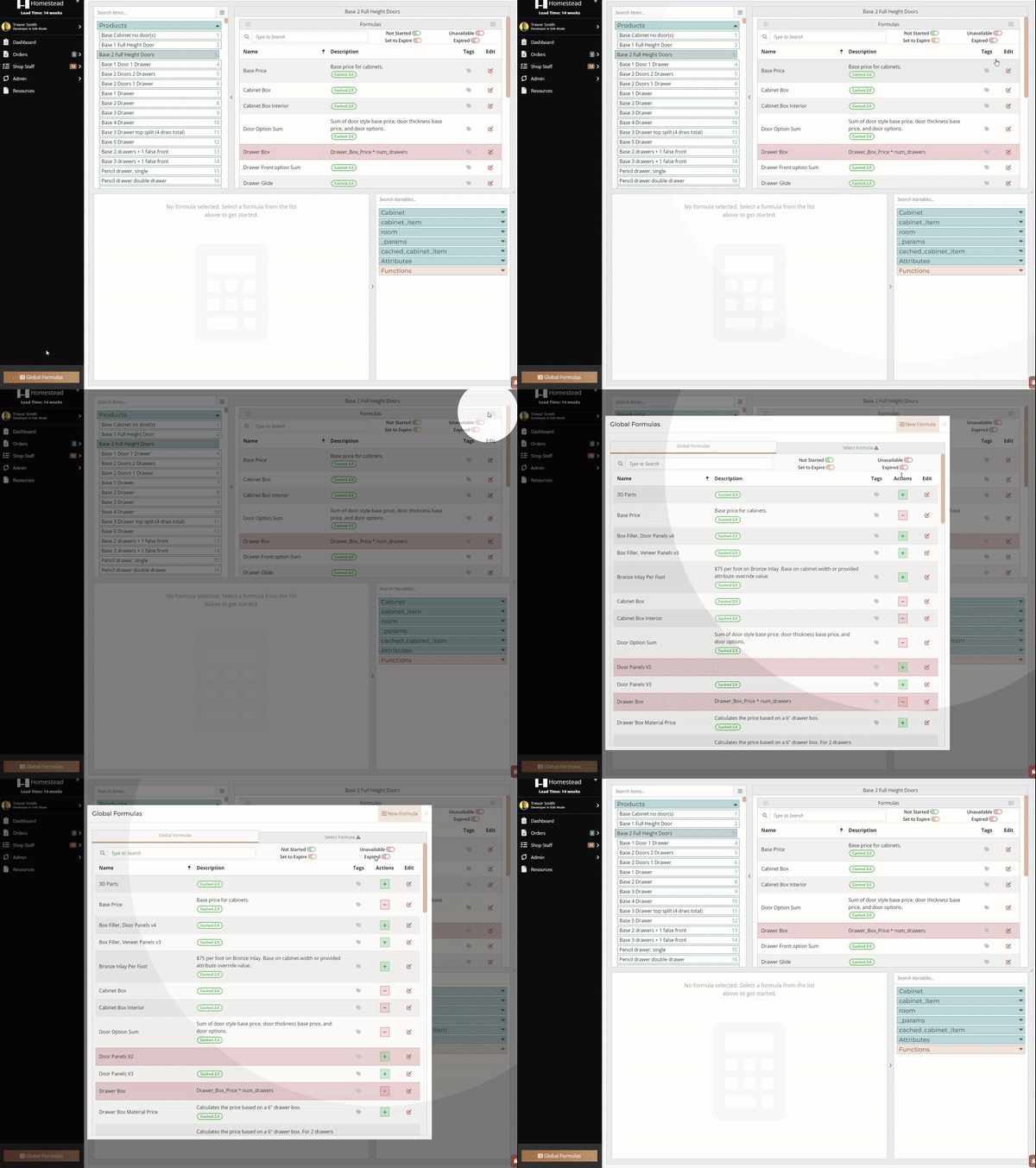
- In the pricing formula editor, you can use the actions column in the global formulas to add / remove modifications from the currently selected product / modification. This is useful when working on a single product.
[](http://help.homesteadcabinet.net/uploads/images/gallery/2023-08/globalformulas.gif)
**Image 5.** Add / remove formulas via global formula actions.
- Global Formula Multi-Select
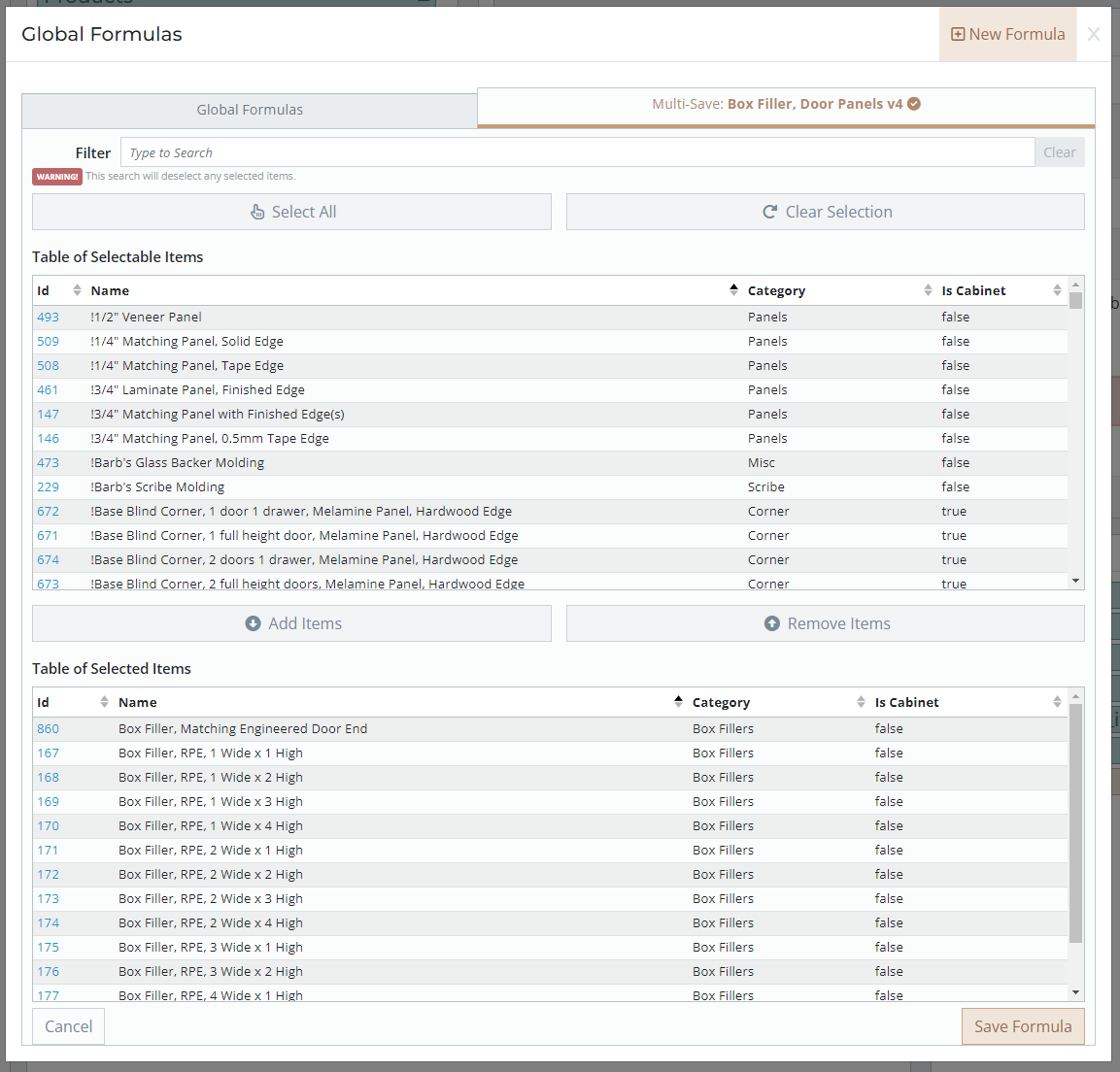
- In the pricing formula editor, you can select a single pricing formula to save to multiple products / modifications at once. Click on the formula in the global formulas, then switch to the second tab to use the Multi-Select feature.
[](http://help.homesteadcabinet.net/uploads/images/gallery/2023-08/7qSimage.png)
**Image 6.** Add / remove formulas via global formula multi-select.
- Database Admin
- From the database admin on the product / modification editor page, you can use the [Price Formulas ](http://help.homesteadcabinet.net/books/bid-program-training-De3/page/products#bkmrk-pricing)to link to any existing pricing formula.