# Add Modification
In this article, we will go through how to add a modification and make sure it is available where you want it.
#### Adding the Modification
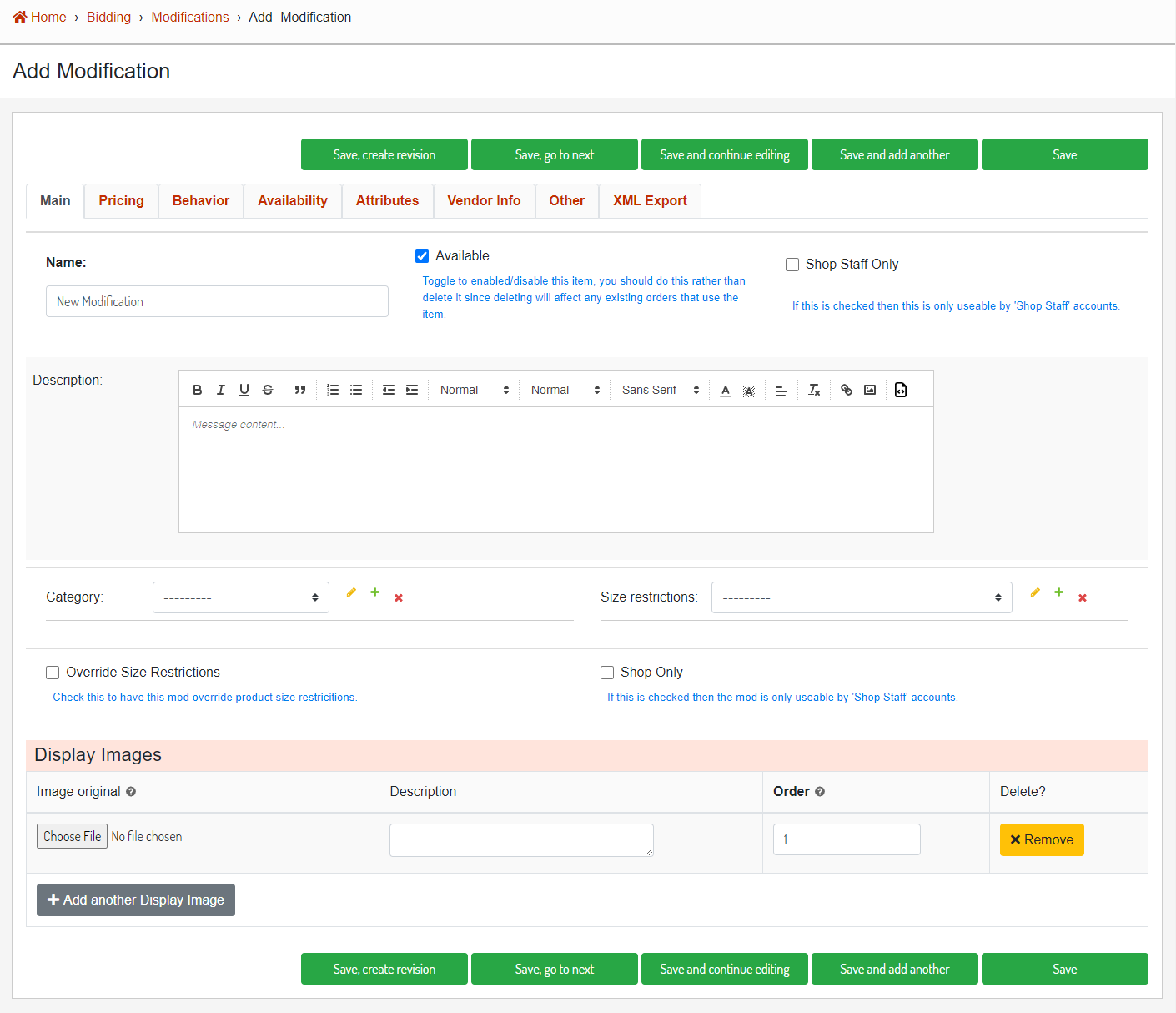
From the [modification list](https://next.homesteadcabinet.net/admin/bidding/modificationitemchoice/) in the database admin, click the "Add Modification" button. Fill out all the needed information on each tab in the modification editor.
[](http://help.homesteadcabinet.net/uploads/images/gallery/2023-08/QN1image.png)
**Image 1.** The modification editor for a new modification.
#### Assigning Availability
Navigate to the Availability tab, this is where you will assign which product lines and products this modification is available in.
##### Product Line
Assign which product line(s) this modification is available in.
##### Product Categories
Assign which product categories this modification should be available in. This modification's availability will be passed down through the categories down to the products. For example, if you choose the ***Cabinet** category, it will apply to all of the sub categories (***cabinet ->** **base***, *cabinet -> base -> door/open***, ***cabinet -> wall -> corner***, etc.)
##### Products
If you need to assign the modification directly to a product and not all the other products in the category, you can choose the products from this list.