# Examples
# Add Modification
In this article, we will go through how to add a modification and make sure it is available where you want it.
#### Adding the Modification
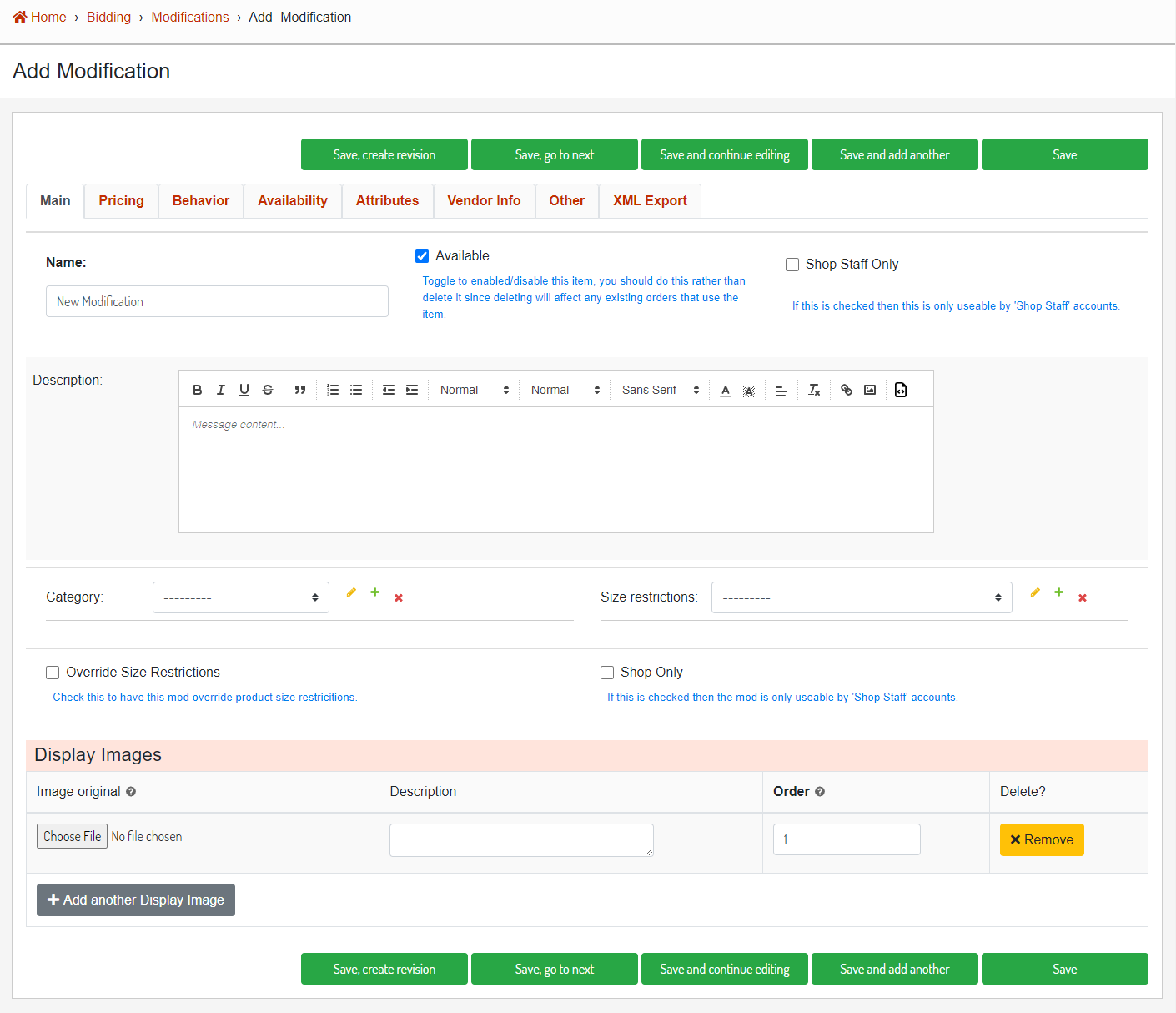
From the [modification list](https://next.homesteadcabinet.net/admin/bidding/modificationitemchoice/) in the database admin, click the "Add Modification" button. Fill out all the needed information on each tab in the modification editor.
[](http://help.homesteadcabinet.net/uploads/images/gallery/2023-08/QN1image.png)
**Image 1.** The modification editor for a new modification.
#### Assigning Availability
Navigate to the Availability tab, this is where you will assign which product lines and products this modification is available in.
##### Product Line
Assign which product line(s) this modification is available in.
##### Product Categories
Assign which product categories this modification should be available in. This modification's availability will be passed down through the categories down to the products. For example, if you choose the ***Cabinet** category, it will apply to all of the sub categories (***cabinet ->** **base***, *cabinet -> base -> door/open***, ***cabinet -> wall -> corner***, etc.)
##### Products
If you need to assign the modification directly to a product and not all the other products in the category, you can choose the products from this list.
# Change Price
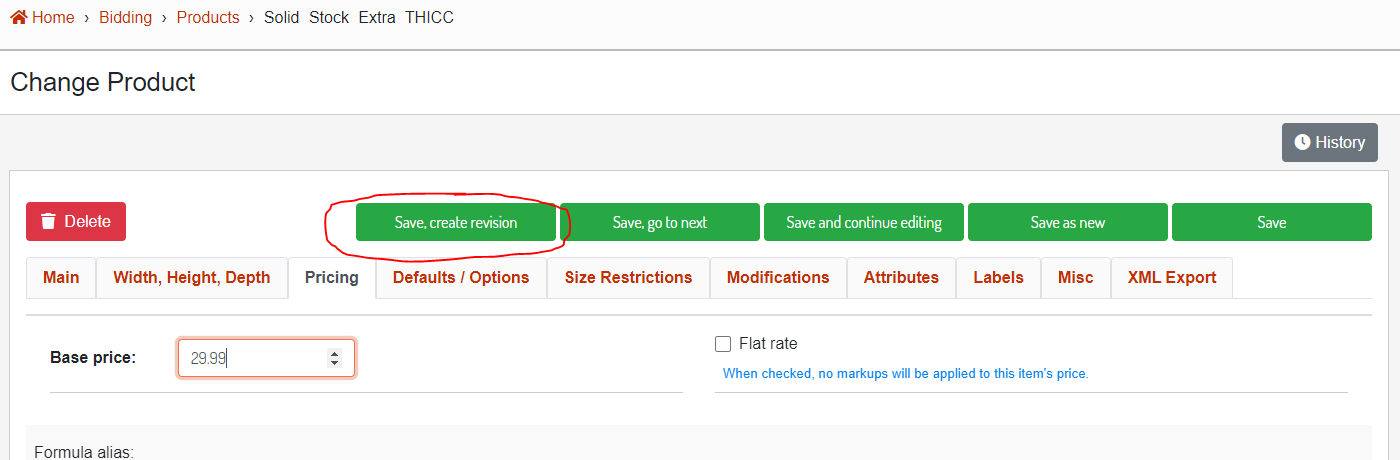
When changing an item's price you will want to use the "Save, create revision" button to set a date for the price change and create a version.
#### Product Price Change with Version
After changing the price, click the "Save, create revision" button. This will save the new price to the database item and will also create a version with the current date and time. This will make it so any bid created after the current time would use the new pricing and anything older than that would use the previous pricing version.
[](http://help.homesteadcabinet.net/uploads/images/gallery/2023-08/udvimage.png)
**Image 1.** Location of "Save, create revision" button.
# Pricing Version
This article will go over a all of the functions that you can perform to a item version.
#### Getting to the Pricing Versions
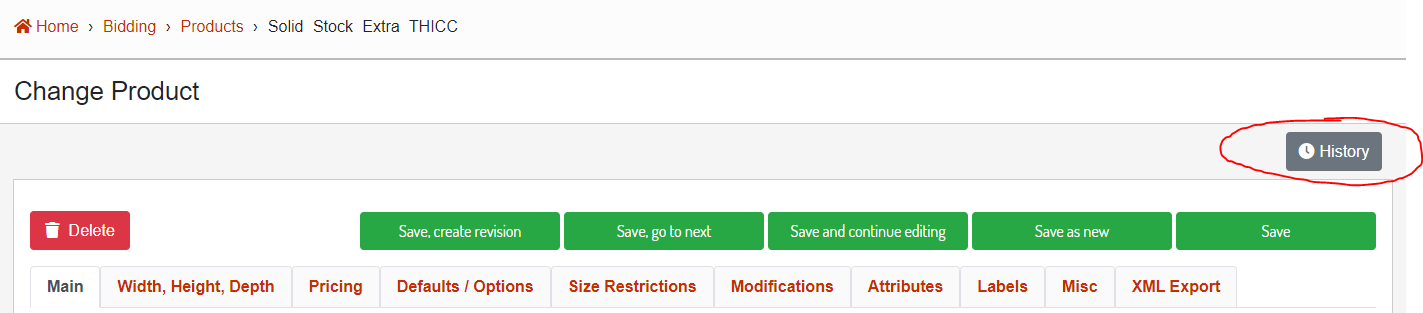
Click the History button from any of the item editor pages in the database admin that supports versions.
[](http://help.homesteadcabinet.net/uploads/images/gallery/2023-08/zfkimage.png)
**Image 1.** Location of the item history button.
[](http://help.homesteadcabinet.net/uploads/images/gallery/2023-08/fQAimage.png)
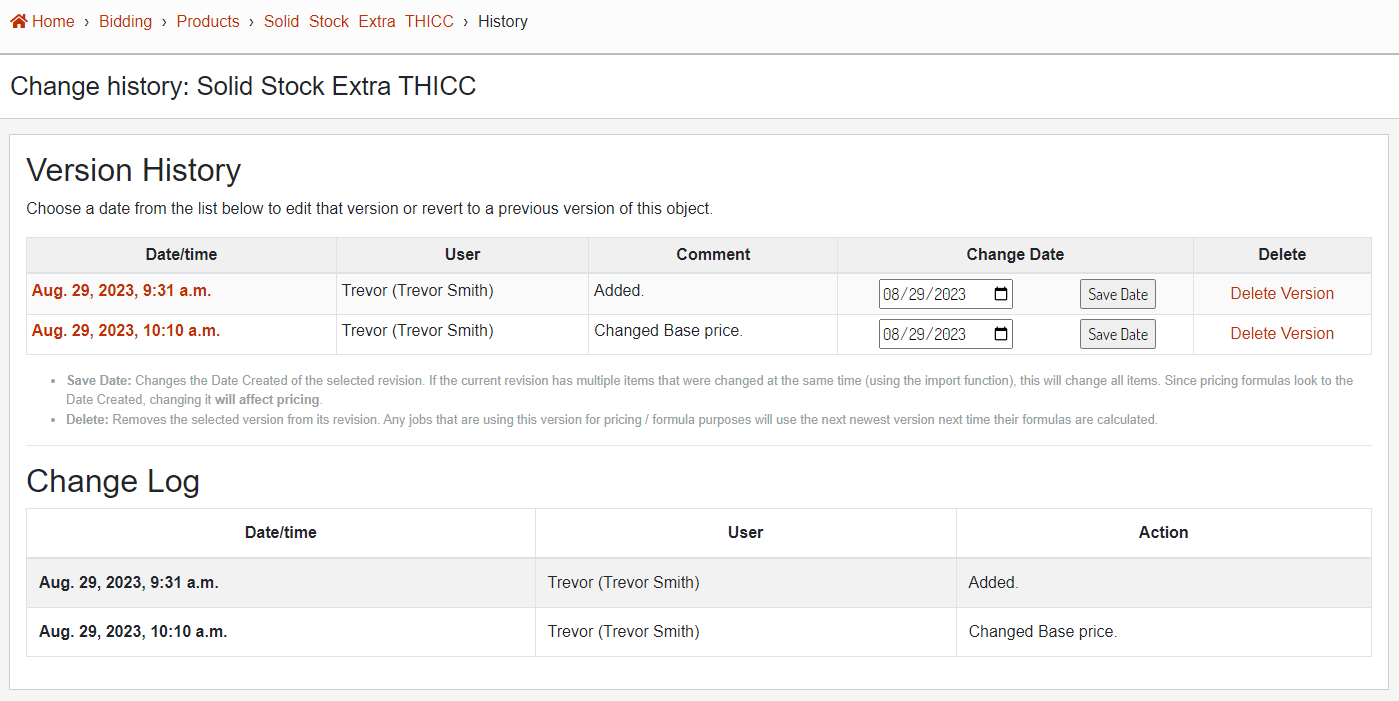
**Image 2.** Version history and change log.
#### Edit Version
To edit an existing version, clicking on the Date / Time of the version will open the version editor.
[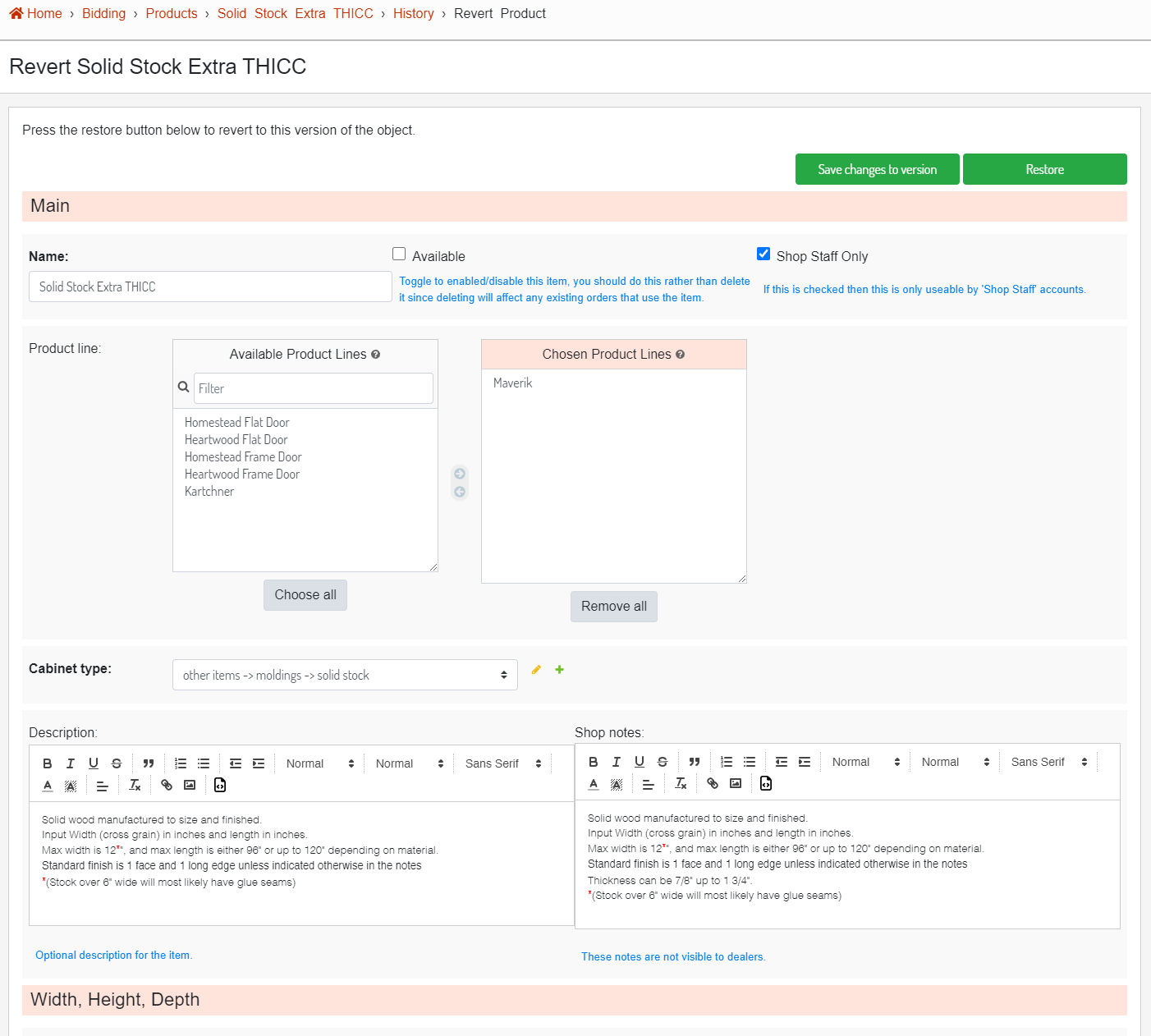](http://help.homesteadcabinet.net/uploads/images/gallery/2023-08/7vsimage.png)
**Image 3.** Product version editor.
##### Save Changes to Version
The "Save changes to version" button will save the current version but will not impact the current database item. A possible reason you would want to update a version is if the pricing was saved at the wrong value and now needs to be updated.
##### Restore
The "Restore" button will take the current version values and save them back to the database item.
#### Change Date
Using the Change Date dropdown date picker, you can assign a new date to any version. This is useful if you are trying to backdate / postdate a pricing change to a specific date.
[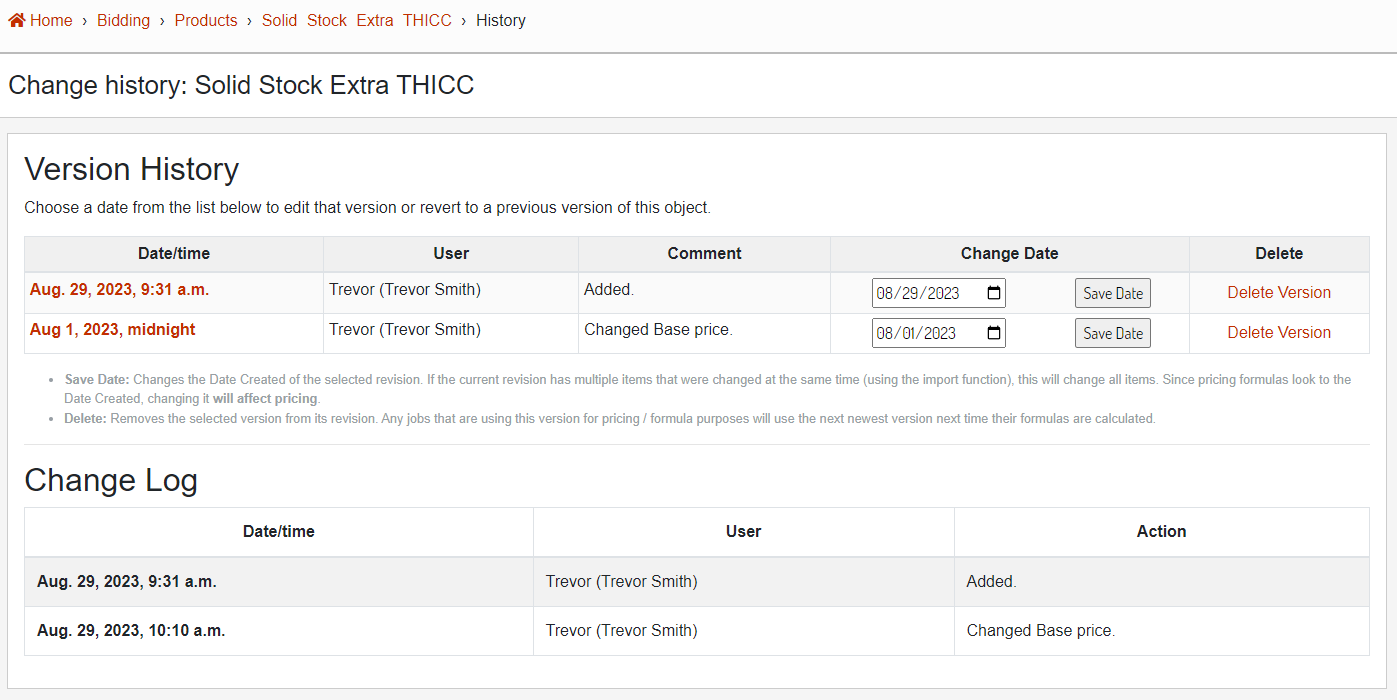](http://help.homesteadcabinet.net/uploads/images/gallery/2023-08/IwAimage.png)
**Image 4.** Version with an updated Date / Time.
#### Delete
Using the "Delete Version" button will completely delete the version. This cannot be undone. This should only be done when you are sure that the version isn't needed.
# Save as New
When adding a new product, it isn't always necessary to start over from scratch. If there is an existing item that is fairly similar to what you are wanting to add, you can use the "Save as new" feature to create a new product from an existing product.
#### 1. Select the Base Product
First, select which product you want to base the new product off of.
[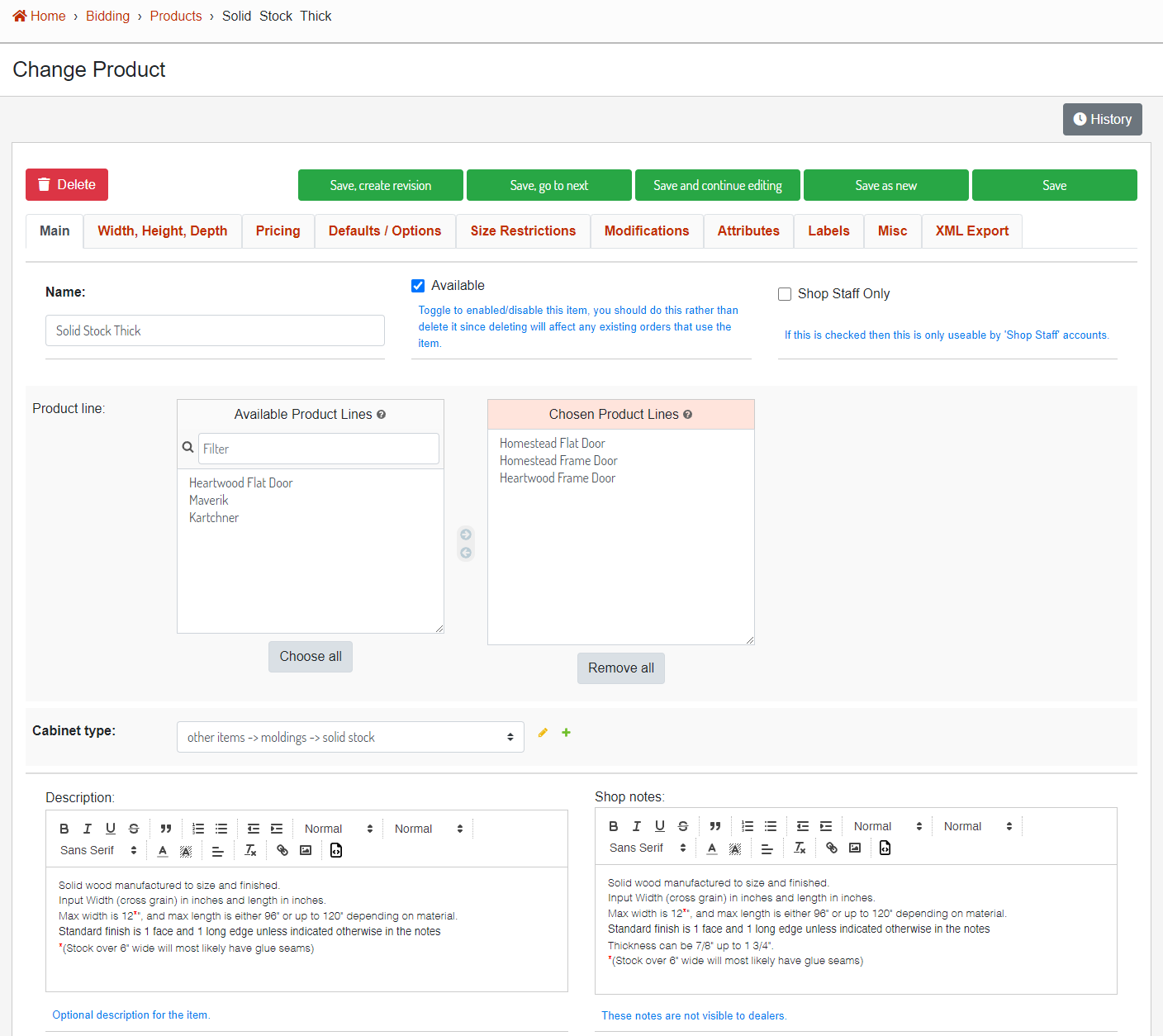](http://help.homesteadcabinet.net/uploads/images/gallery/2023-08/PLBimage.png)
**Image 1.** Solid Stock Thick will be used as the base product.
#### 2. Make Desired Changes
Next, you will want to make any changes to the base product that you want reflected in the new product. For example, we will rename the Solid Stock Thick product and give it a new base price. After you have made changes, do not click the save button.
[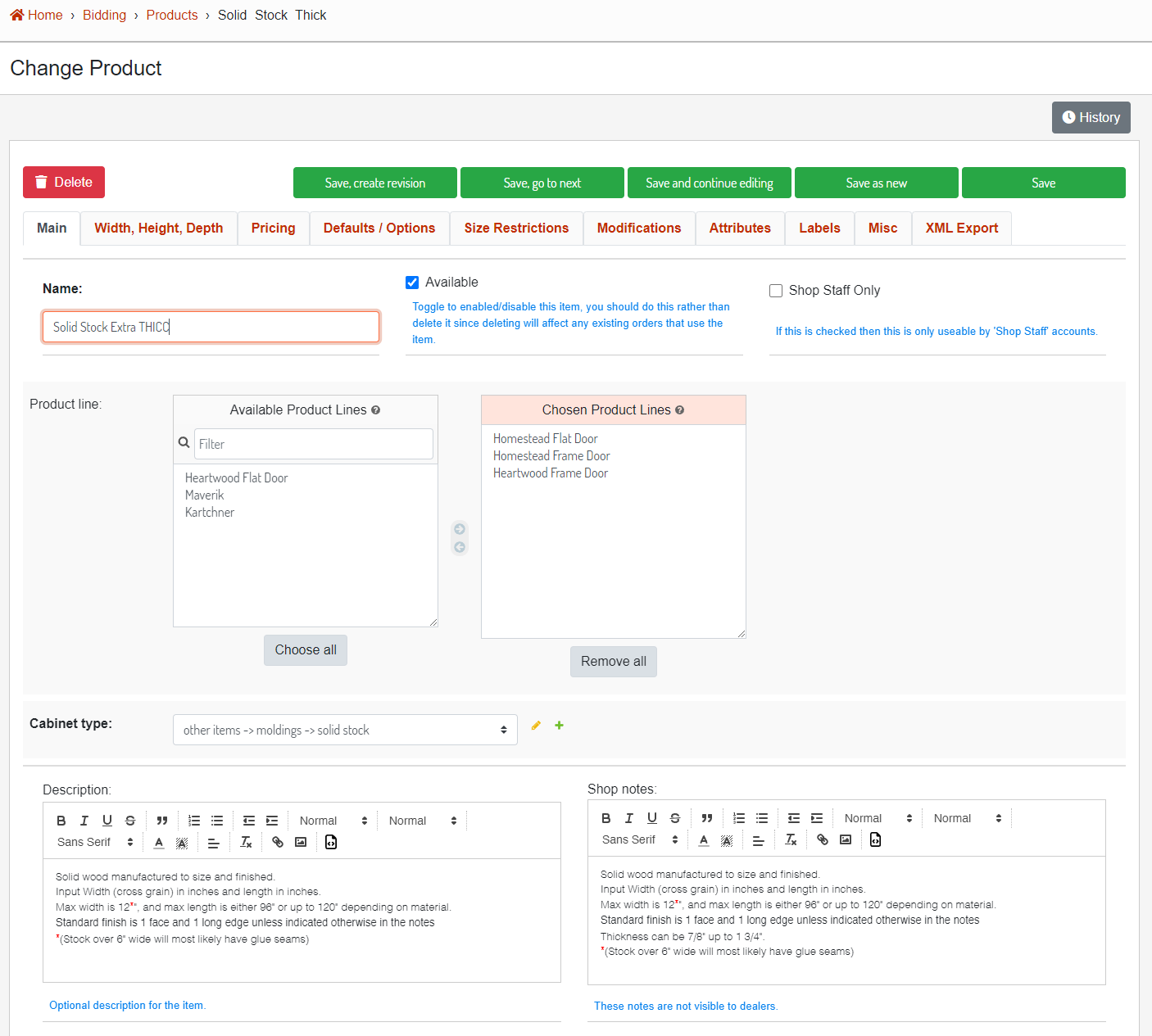](http://help.homesteadcabinet.net/uploads/images/gallery/2023-08/PcIimage.png)
**Image 2.** Changes made to base product that we want reflected on the new product.
#### 3. Save as New
Once the changes are made, use the "Save as new" button. This will create a new product with the changes you have made and will leave the original product unchanged. A new Version will be created for the newly added product, so it is important that if any pricing information was not changed before clicking "Save as new" it should be updated in the Version (see [Pricing Version](http://help.homesteadcabinet.net/books/bid-program-training-De3/page/pricing-version) article) as well.
---
**Heads Up**: When you do a "Save As" some of the related objects such as Product Line, Modifications and other multi choice fields will not be populated. You will need to set these manually if they don't stick.