# Database Admin
# Introduction to the Database Admin
The [database admin](http://orders.homesteadcabinet.net/admin) servers as an interface for select individuals to edit the Bid Program's database. You can use the database admin to easily interface with this database and perform common tasks such as add new products, edit door styles, update material prices, and much more. This training document will cover how to access the database admin and how to navigate it.
#### Accessing the Database Admin
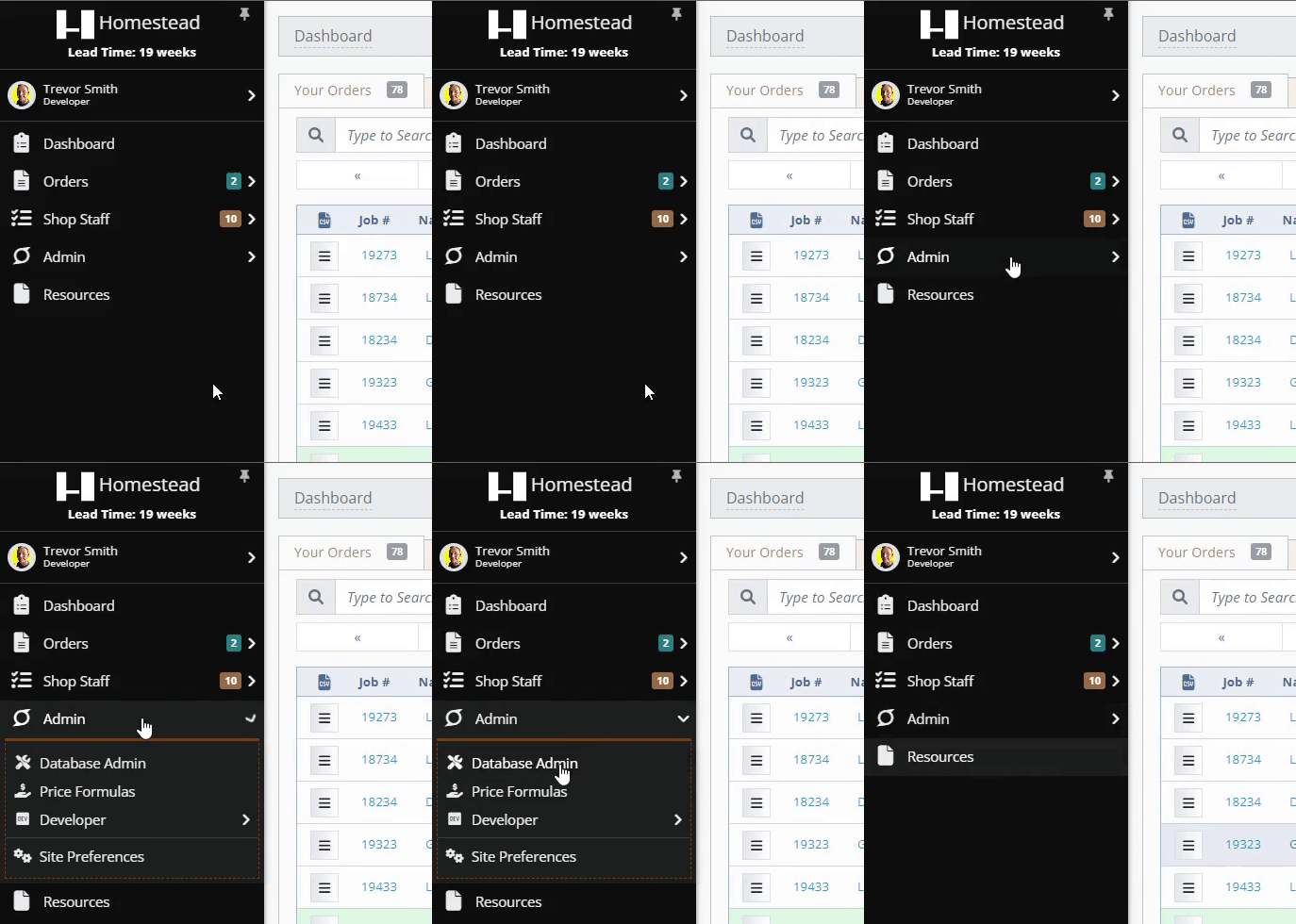
Users who have been given given the permission of [Database Administrator](http://help.homesteadcabinet.net/books/bid-program-training-De3/page/users) will be able to access the database admin by clicking on Admin > Database Admin in the navigation menu from any page on the site (see **Media 1** below). Users without database admin access will not see the admin dropdown in the navigation menu.
[](http://help.homesteadcabinet.net/uploads/images/gallery/2023-04/8XGdatabase-admin.gif)
**Media 1.** Accessing the database admin from the navigation menu.
# Dealership Permissions
It is possible to toggle some additional permissions on a dealership level. For instance you can give some dealers the ability to add finished sides to a cabinet by adding them to the "Allow Finished Ends" permission group.
# Item List Options
From this any item list, you can use the action buttons in the top right corner to change the order of the items (this changes the order they are show on the site), import changes / new products from various file types, export all products to various file types, or add a new product.
[](http://help.homesteadcabinet.net/uploads/images/gallery/2023-08/image.png)
**Image 1.** Item list action buttons.
# Save Options
When editing an item, there are up to 5 save options to choose from, this article will explain in detail what each option does.
#### Save, create revision
The "Save, create revision" save option will save your current changes to the database and it will also create a cached version of this object for pricing purposes.[ See the pricing document for additional information](http://help.homesteadcabinet.net/books/bid-program-training-De3/chapter/pricing). For example, if you want to change a product's base price from $100 to $150 use this button to change the base price for any future bid.
#### Save, go to next
The "Save, go to next" save option will save your current changes to the database and go to the next item in the list to edit. This is useful if you are manually going through each item and making changes.
#### Save and continue editing
The "Save and continue editing" save option will save your current changes to the database and reload the item editor for the same item with your saved changes.
#### Save as new
The "Save as new" save option will ***NOT*** save your current changes to the database, it will create a new item based off the current item. If you have unsaved changes when clicking the Save as new option, those unsaved changes will be saved to the new item but not the original item.
#### Save and add another
The "Save and add another" save option will save your current changes to the database and open a new blank item editor to create another item.
#### Save
The "Save" save option will save your current changes to the database and returns to the list of items.
# Creating a Dealership
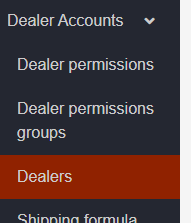
Adding a new dealership is done through the "Database Admin" in the Dealer Accounts -> Dealer
[](https://help.homesteadcabinet.net/uploads/images/gallery/2023-10/image.png)
#### Fields
**Acronym:** A short reference to the dealership that is used in various places. For example Brad's Cabinet Co could have an acronym of BCC.
**Markup Percent:** An additional amount to adjust this dealership's cost.
**Hotlist markup percent:** The upcharge you want to charge for hot (expedited) orders.
Now that you have added a new dealership clients should be able to create accounts associated with the new dealership, an administrator will need to approve each account.